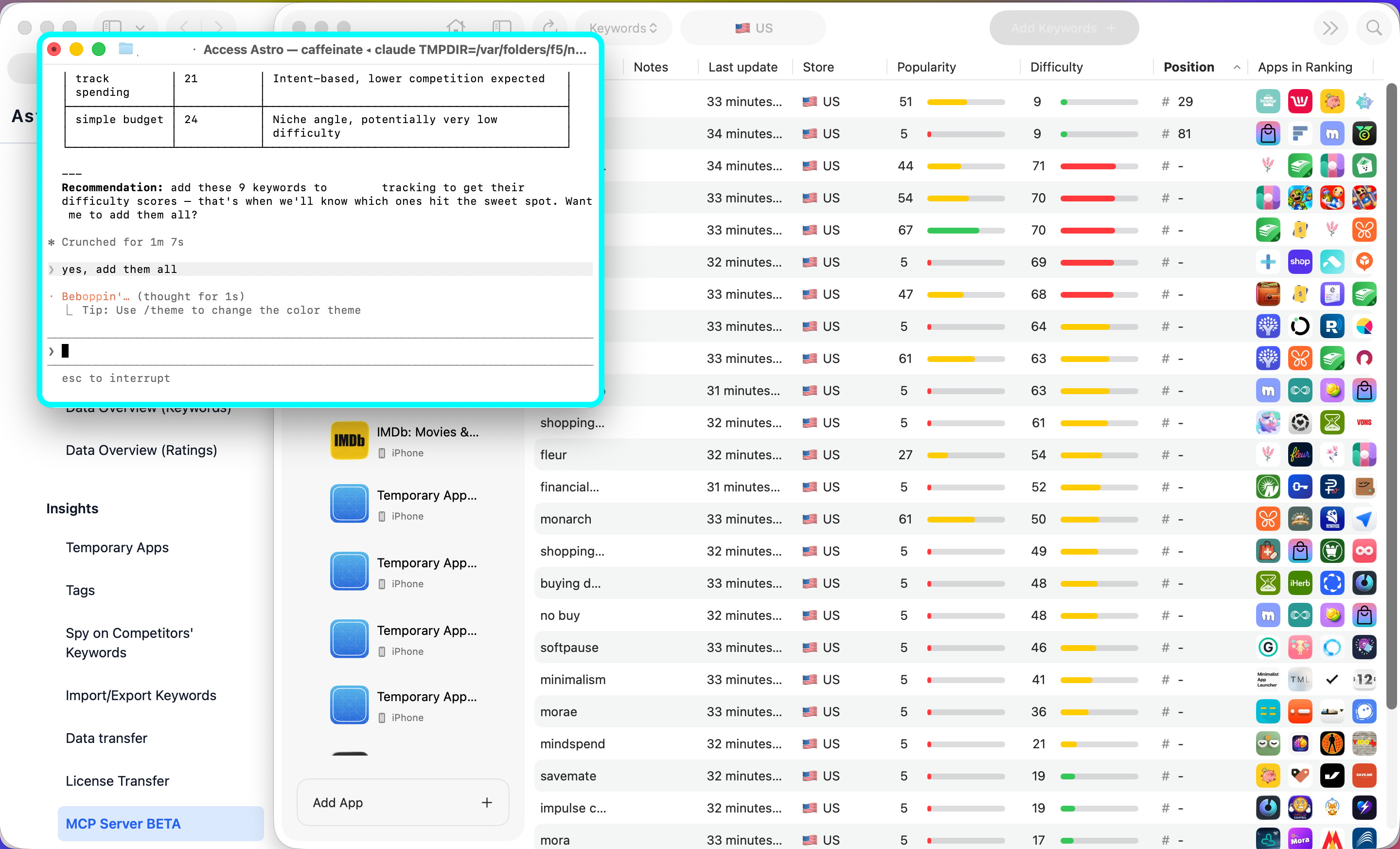
I’ve been putting off this setup for weeks. Too many tools, not enough time. But last week I finally did it, and I want to be honest: I didn’t expect to be this impressed.
This newsletter is the full breakdown: what it is, how to set it up, and the exact prompts I’m using now.
First, what is this actually?
Most ASO workflows look like this: Pull data from tool > copy to spreadsheet > think > go back to tool > make change.
MCP collapses that entire loop. Your AI and your data live in the same conversation.
Three things you need to know:
Astro: my ASO keyword tracking tool for the App Store. It's lightweight, quite affordable ($108 billed annually) with unlimited keywords and apps.
If you're not on it yet:
Claude is Anthropic’s AI. You need a paid plan (Pro or above) for MCP to work. claude.ai/
MCP (Model Context Protocol) is the protocol that connects them. Think of it as giving Claude a direct line to your Astro database. It reads your data, takes actions, and reports back, all inside the chat.
Enable MCP in Astro
Open Astro > Settings > MCP Server.
Toggle on Enable MCP Server.
Note the port — default is 8089, leave it as is.
Astro must be open every time you want to use this.
The MCP server starts and stops with the app.
Make sure you have Node.js
Install Claude Code
Connect Astro to Claude Code
Open Claude Code
How to set it up
The docs here make it look simple. It mostly is but there are a few walls you might hit. Here’s the real sequence:
Open Terminal (Cmd + Space > type Terminal) and run:
node --version
If you get a version number back, you’re good.
If not, download it from nodejs.org and grab the LTS version.
Claude Code is Anthropic’s CLI tool. It’s what connects to Astro’s MCP server.
In the terminal, run:
npm install -g @anthropic-ai/claude-code
⚠️ You might hit a permissions error here. It looks like:
EACCES: permission denied.
Don’t panic. Run these 3 commands in the terminal :
mkdir -p ~/.npm-global
npm config set prefix '~/.npm-global'
echo 'export PATH=~/.npm-global/bin:$PATH' >> ~/.zshrc && source ~/.zshrc
Then try the install again.
This is a one-time fix that solves npm permissions permanently.
Open terminal and run:
claude mcp add --transport http astro http://127.0.0.1:8089/mcp
You should see: Added HTTP MCP server astro with URL: http://127.0.0.1:8089/mcp
Still in the terminal, type:
claude astro
You’re in. Astro is connected. Start asking.
⚠️ Google Drive / Sheets integration: I’m still working through the auth flow for writing reports directly into Google Docs via MCP. Will share a full tutorial once I have a clean, tested process. Watch this space.
What I did in my first session + the exact prompts I used
→ Filtered by popularity + difficulty to find real opportunities
Instead of manually scanning columns in Astro, I described what I was looking for in plain English. Claude reasoned through which keywords were worth testing, based on the criteria I added.
Prompt: For my app in the US, find keyword suggestions with low difficulty, relevant to my app and high popularity above 5.